On this page
Control over your Sourcing
This guide covers how to source devices on Cellbie. By the end, you'll know how to browse live inventory, set quantity limits, update prices, and use bulk tools to stay competitive.
Live Inventory
The Live Inventory tab shows available supply in real time. Search and sort by model, inventory type, and price to find the devices that matter to your business.
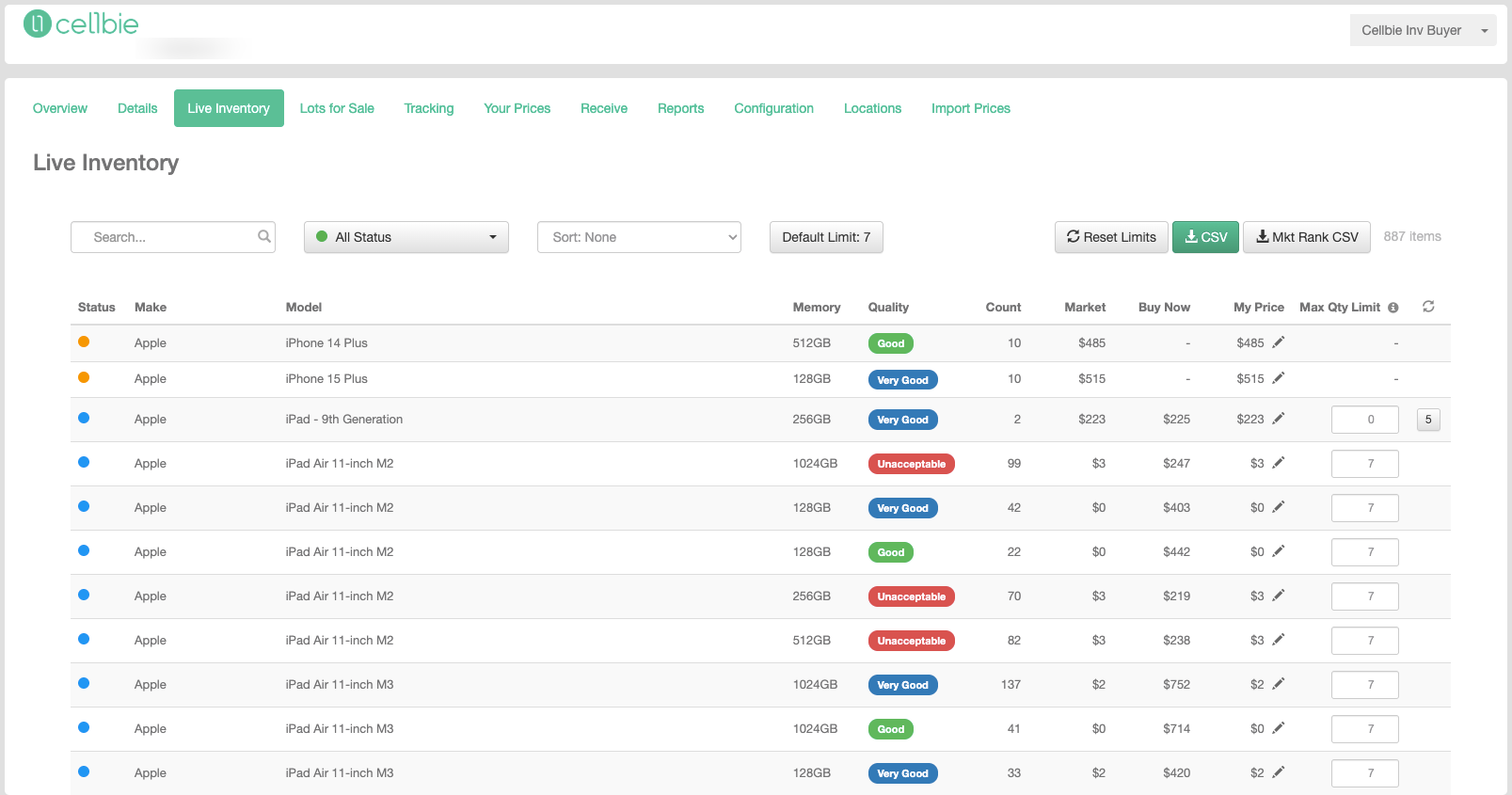
Inventory status types
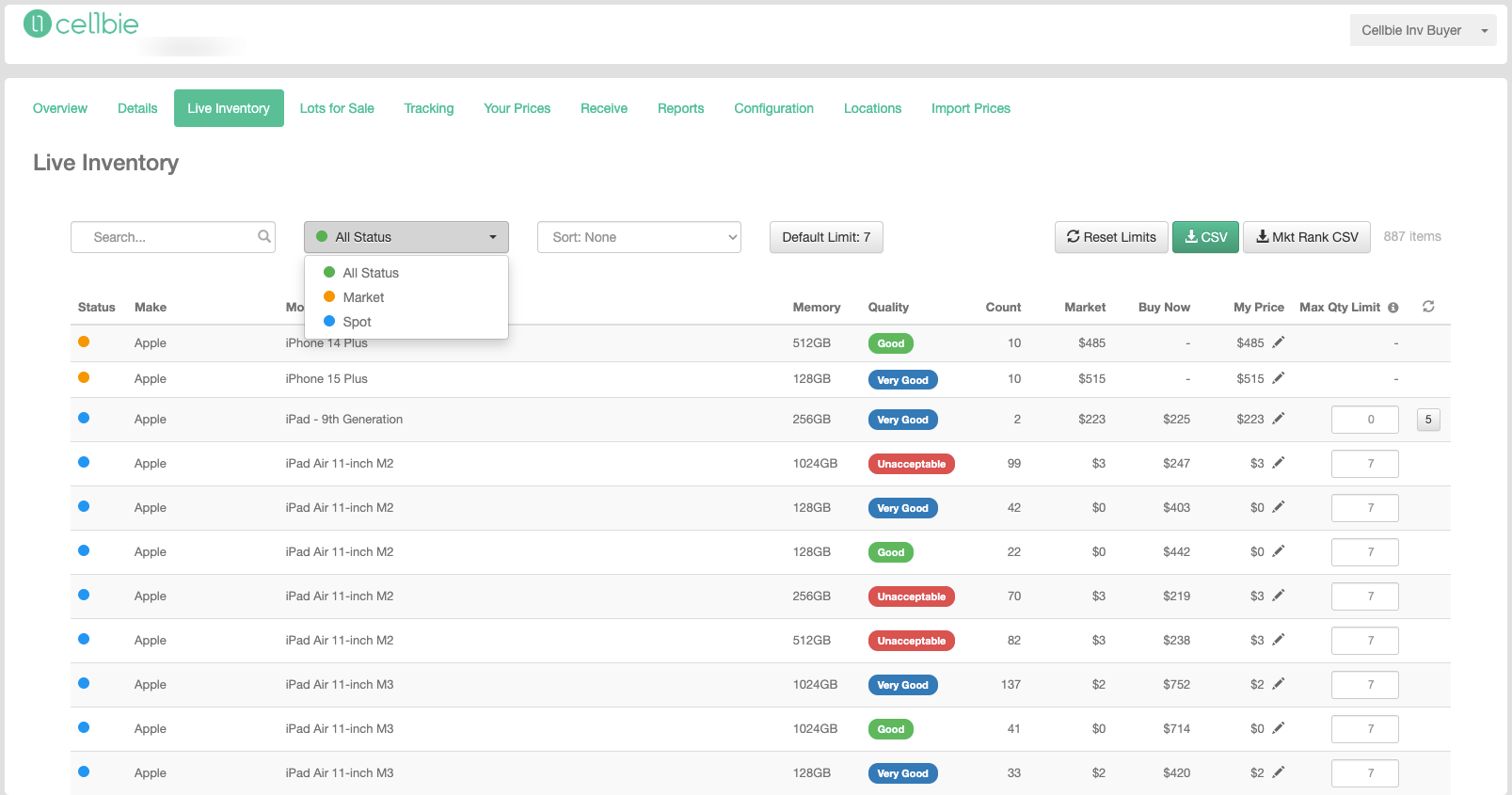
As a buyer, you can secure deals from two inventory sources:
- Market — Buyers compete on Market prices only for these units, transactions are either instant or triggered upon seller readiness.
- Spot — Buyers compete on Market prices for these units but can secure volume by aligning with the Buy Now price.
Quantity Limits
Configuring quantity limits
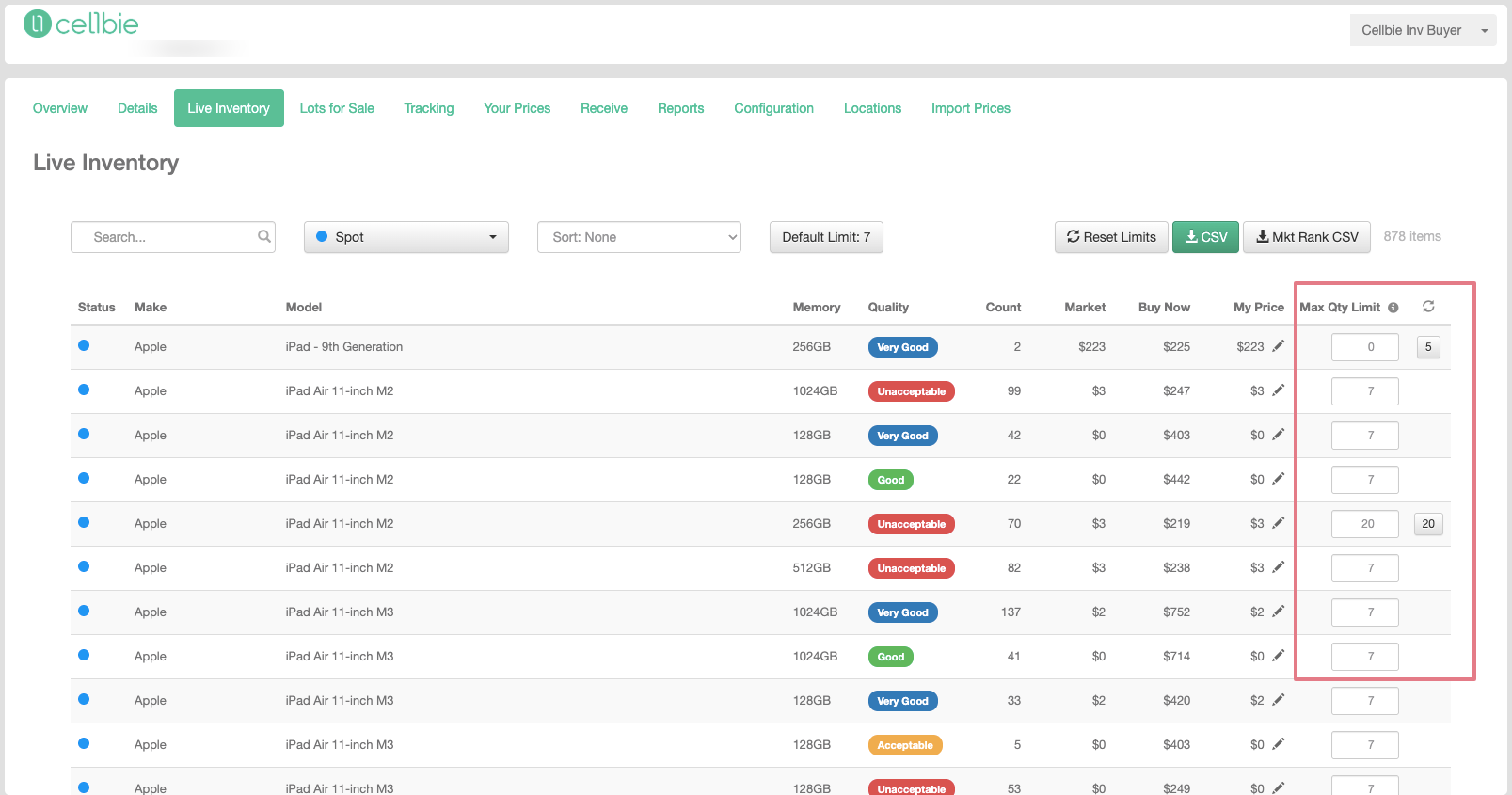
Set a maximum quantity per model (C-SKU) for any Spot inventory to prevent over-purchasing. The Max Qty Limit column shows remaining purchasable units for each SKU.
Edit the field to set a temporary limit. It persists until you edit it again, refresh, or remove it.
For a consistent limit across models, click Default Limit to set a baseline. Use Reset Limits to refresh all limits to the default or custom value.
Updating Prices
For general price updates, use the Your Prices tab. Live Inventory is designed for devices ready for immediate sale and shipment.
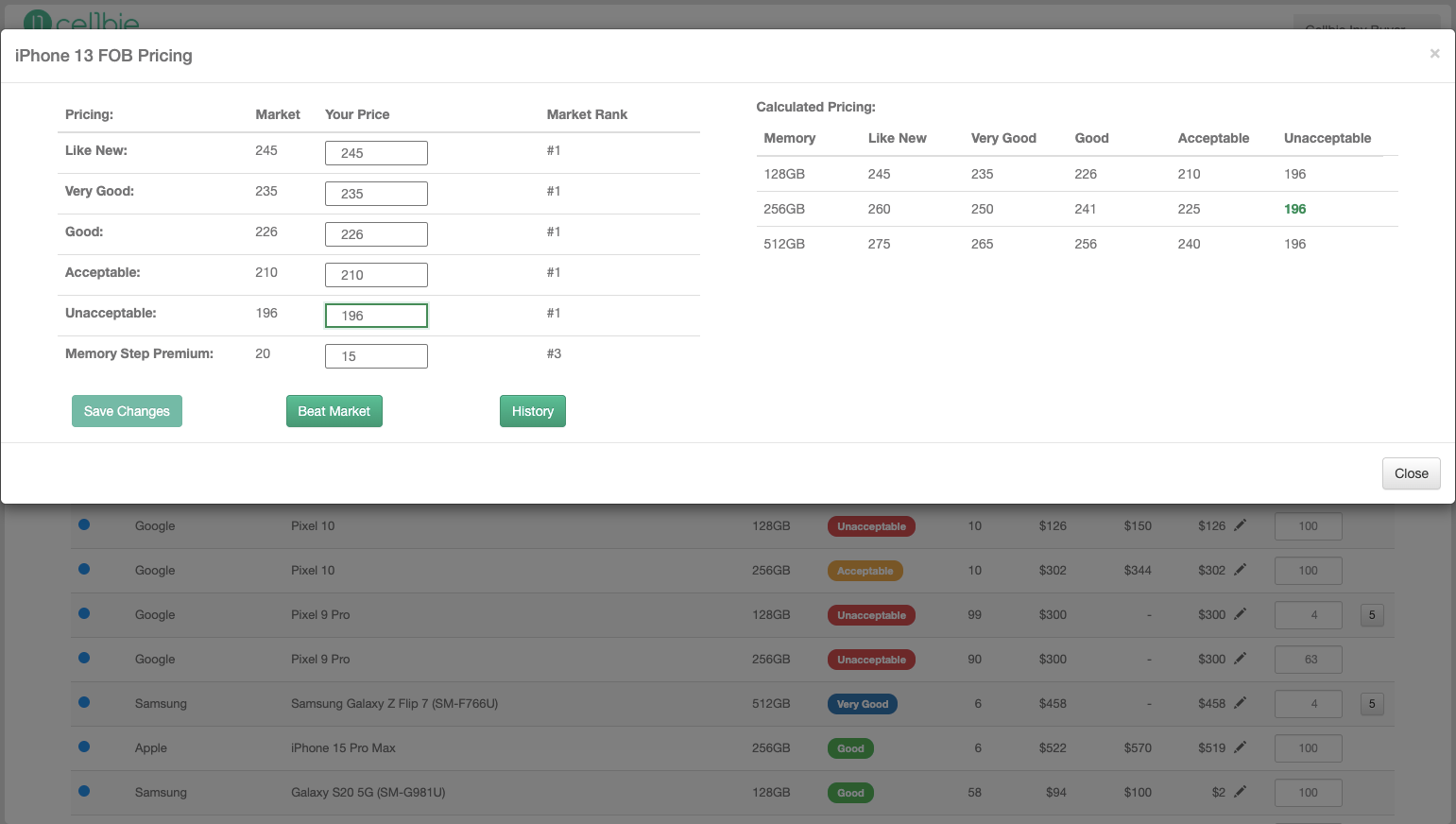
Click the pencil icon on any row to open the price configuration window. Adjust bids using current market prices and competitor rankings as reference.
Bulk price updates
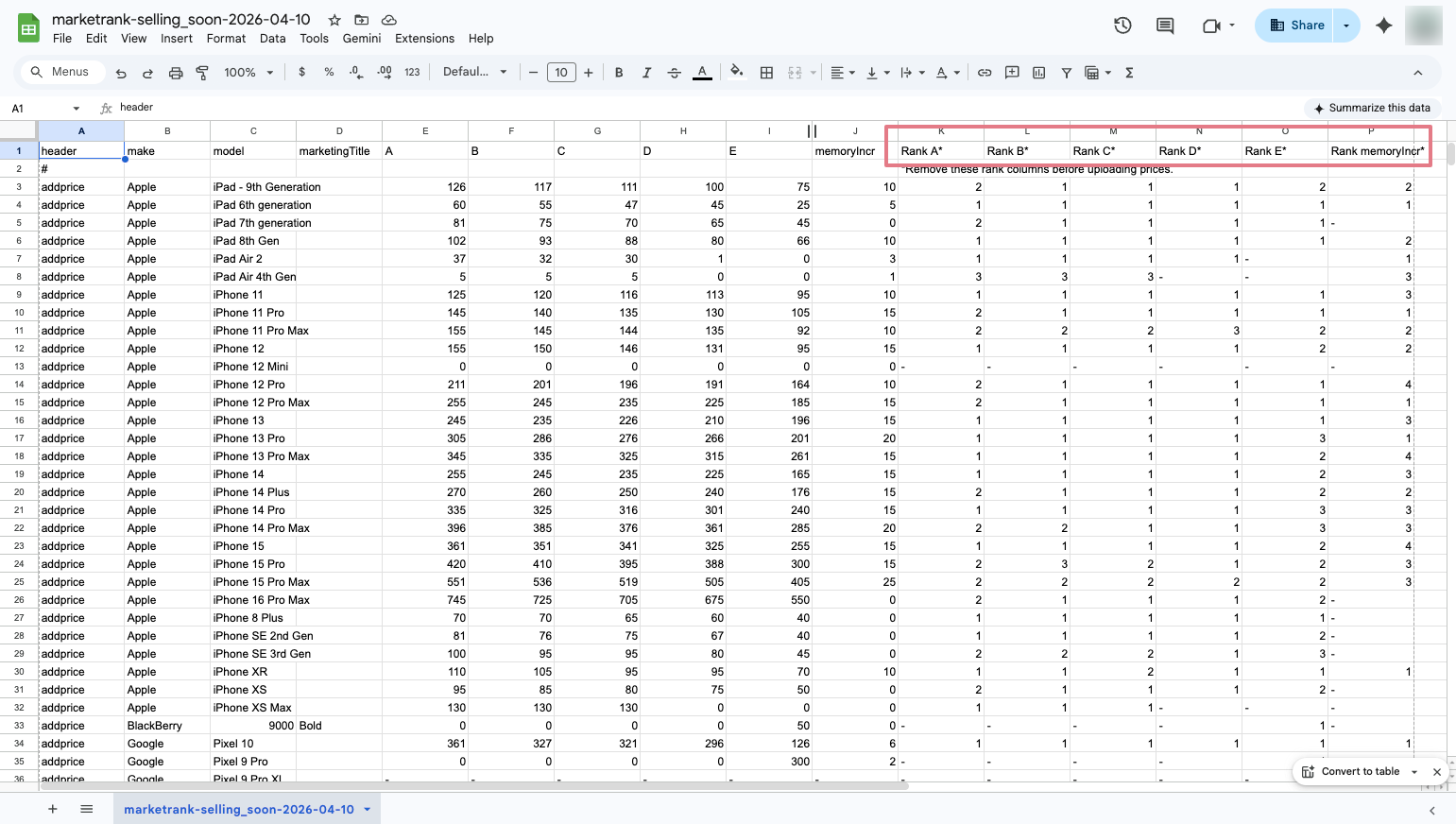
Use the Import Prices tab for bulk updates. Export the Mkt Rank CSV — it compiles your existing prices alongside all Live Inventory models in one file.
Edit the exported file. Save as .CSV after removing unnecessary columns or rows. Re-upload via the Import Prices tab.
Still have questions? Contact support →
Related documentation