On this page
Listing Products on the market
This guide covers how to list and sell devices on Cellbie using Queue. By the end, you'll know how to Create listings, upload in bulk, access market insights, and fulfill purchase orders.
Context & Configuration
Queue lets you list products by model and quantity without committing IMEIs upfront. If you manage inventory across multiple sales channels, you can maximize yield without restricting your options, and use Cellbie's buyer network data to make informed pricing decisions.
Queue complements One (Instant Disposition). For tested devices that need to move fast at a fair price, One remains the right choice. Queue is built for sellers managing multiple channels who want data-driven sales decisions.
Listing Products on the market
Your first listing
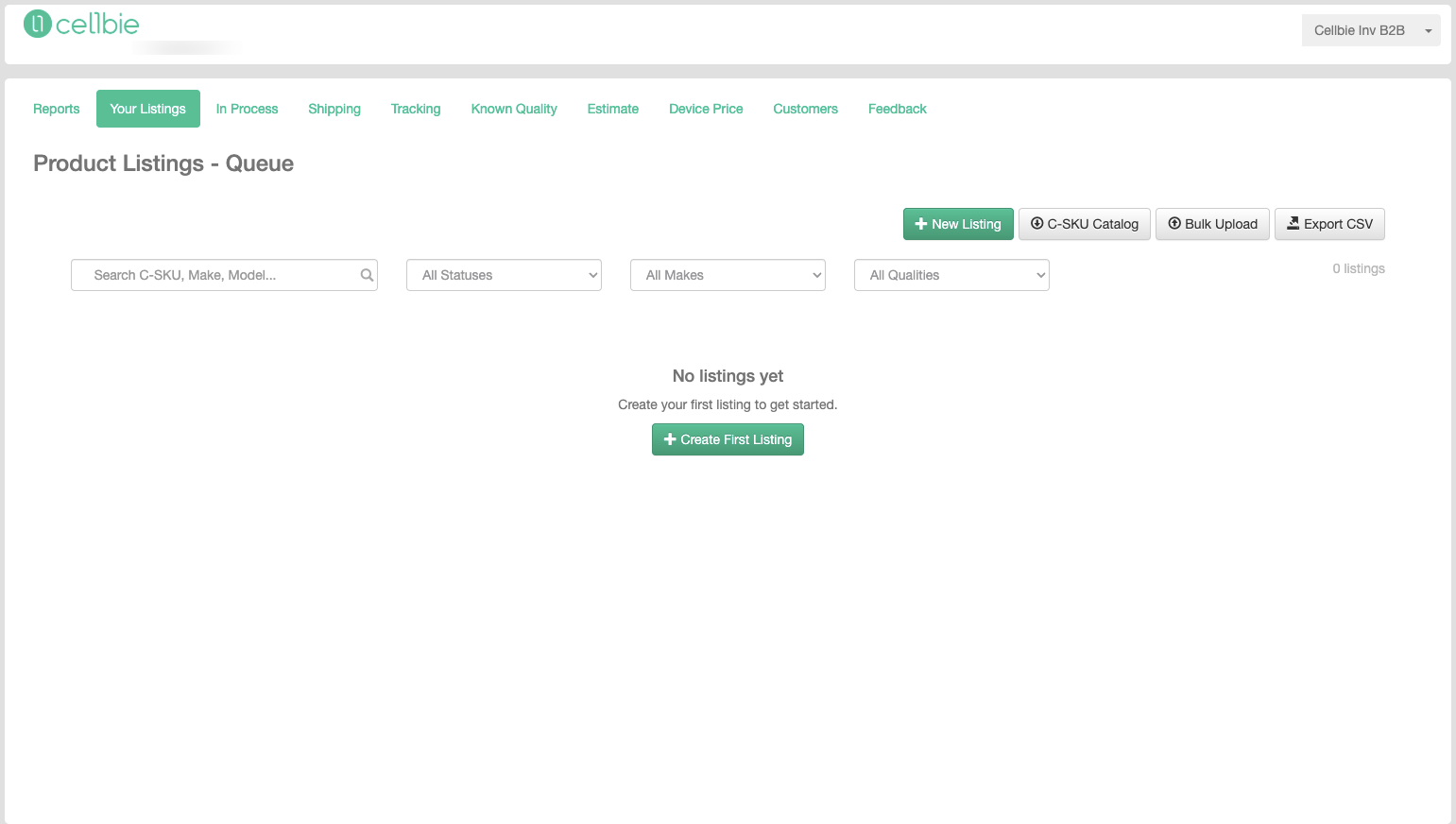
Whether you're listing a few select products or hundreds of models, the workflow will feel familiar. Log in to Cellbie and select Your Listings.
Start with a single listing before moving to bulk uploads:
- Click New Listing (top toolbar) or Create First Listing (empty state)
- Select the model you want to sell
- Add your Ref ID to map the listing to your WMS or ERP
- Enter the available quantity and minimum price
- Click Save Listing
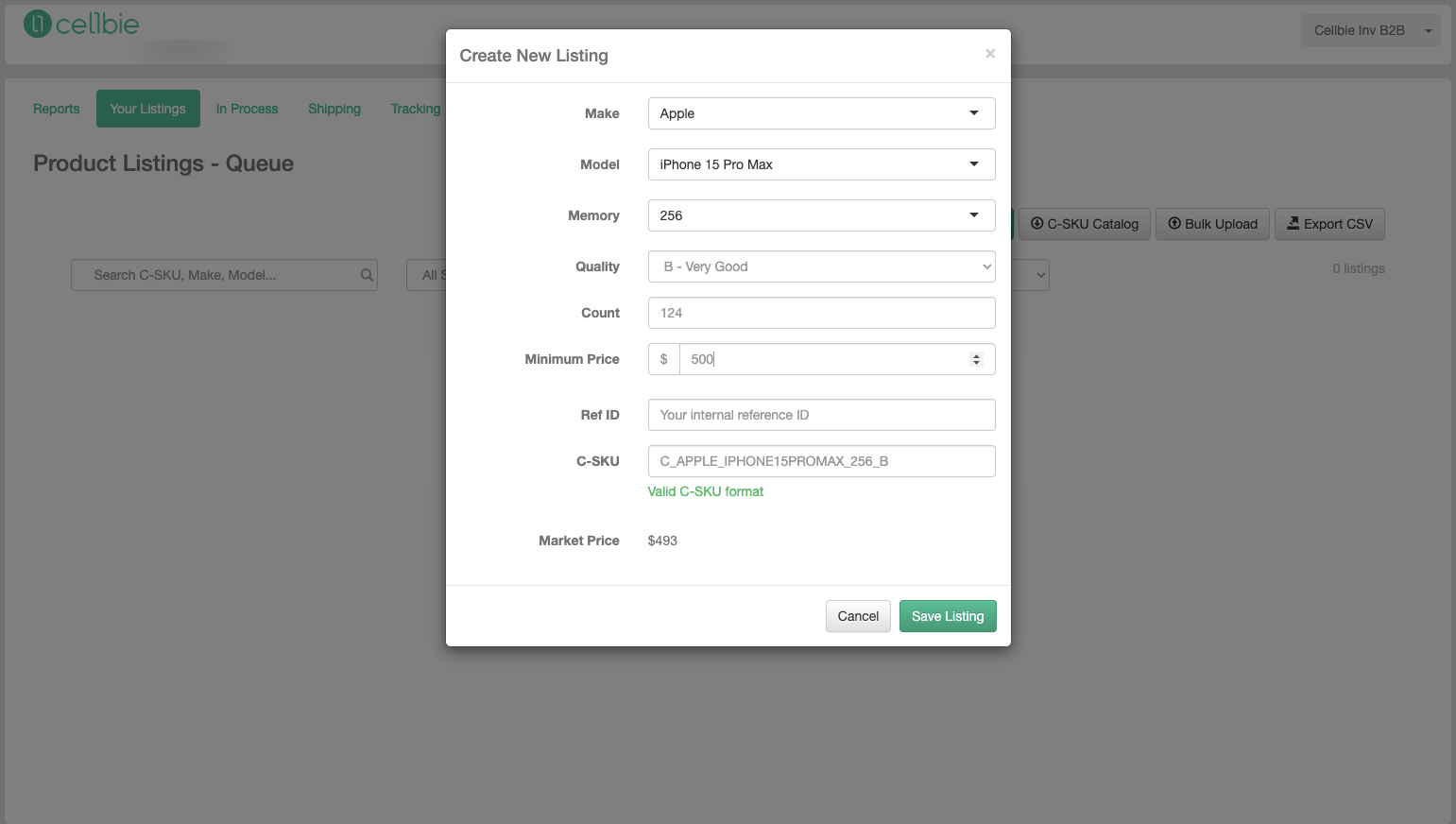
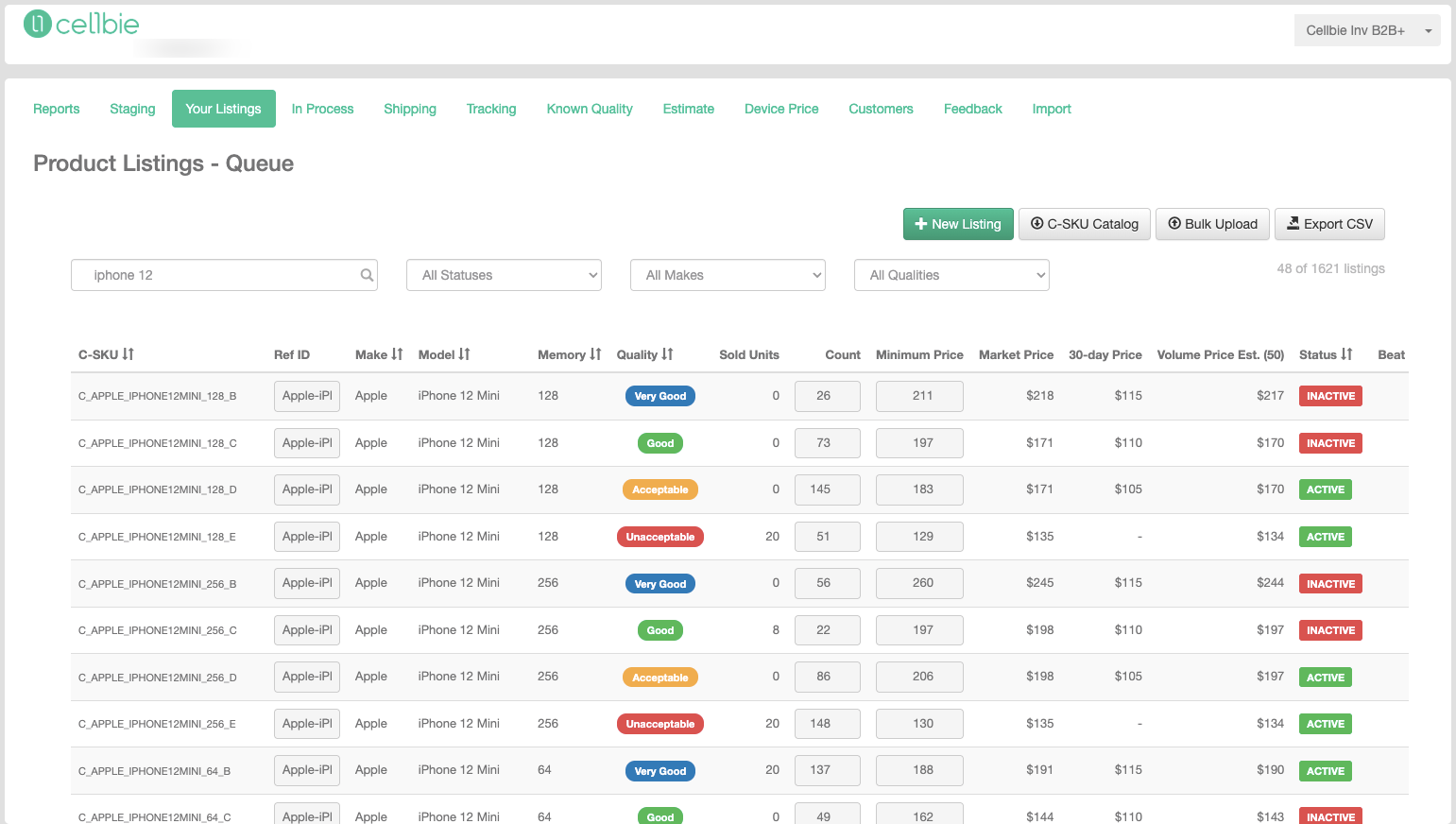
After publishing, your listings reflect one of three statuses:
- Inactive — Count is zero, or your minimum price significantly exceeds current market levels.
- Lost — Another seller is offering the same product at a more competitive minimum price.
- Active — When a buyer matches your minimum price, a purchase order is created automatically for fulfillment.
Bulk product upload
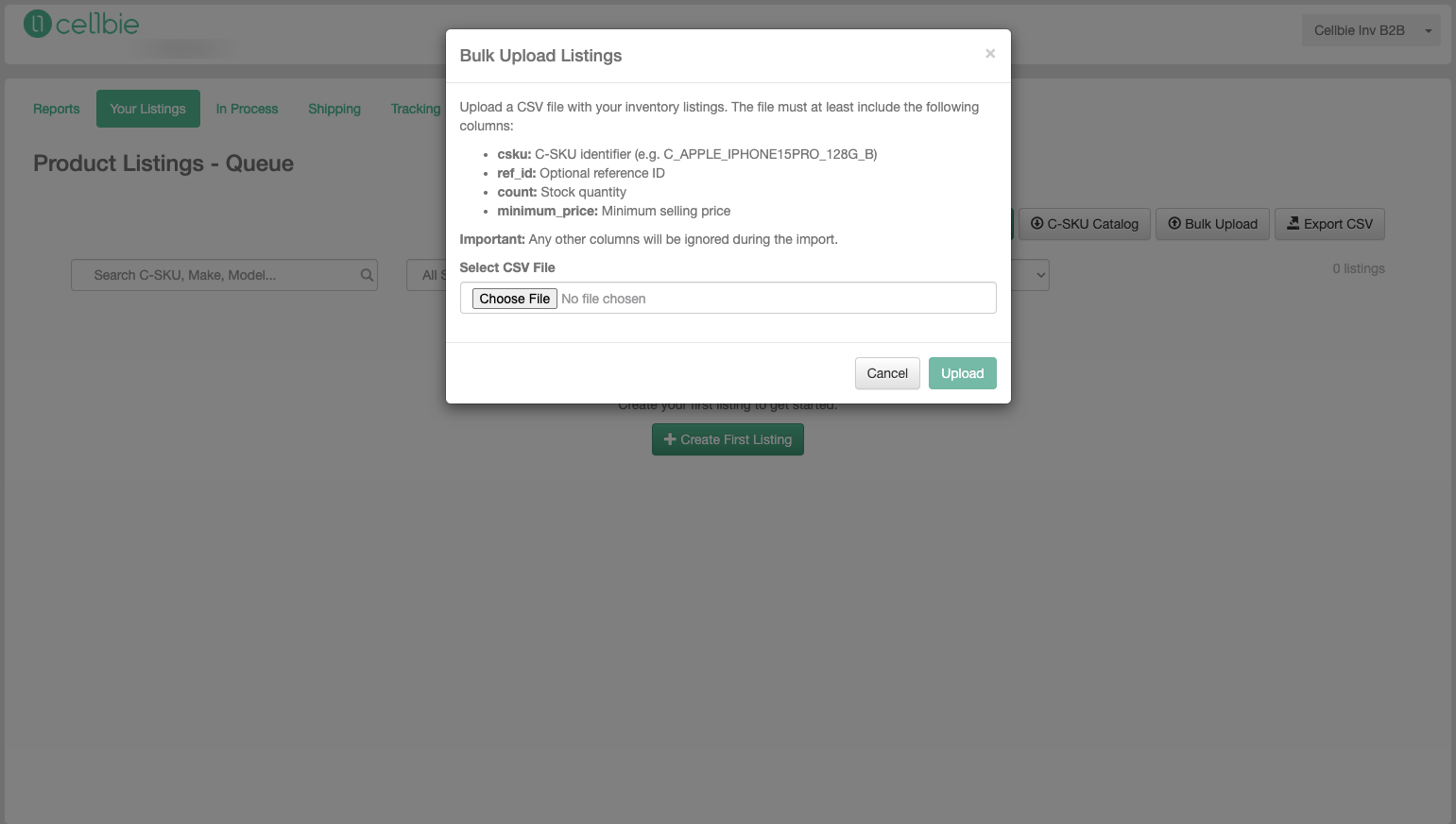
To manage hundreds of products at once, use the bulk upload feature.
- Click C-SKU Catalog to download the Cellbie SKU Catalog
- Open the exported .CSV — it maps your inventory to Cellbie's models
- For each product you want to sell, enter the Count and Minimum Price
- Use the Market Price column as reference for current buyer demand
- Save as .CSV
- Return to Your Listings, click Bulk Upload, and select your file
Data-Driven Insights
Each listing surfaces key market data:
| Column | What it shows |
|---|---|
| Market Price | Current highest buyer bid — your potential selling price |
| 30-Day Price | Historical selling price for this item on Cellbie, 30 days ago |
| Volume Price Est. (50) | Estimated average selling price at 50-unit volume |
| Beat Min. Price | The minimum price required to win the market when multiple sellers list the same product |
Order Management and Shipping
When orders arrive, the Shipping tab populates. Select a buyer from the dropdown to begin fulfillment.
Key actions:
- Shipping Details — Review destination information at the top left. Keep your address book current within your carrier or logistics platform.
- Filter — Search unfulfilled items by order number, C-SKU, or your unique identifier.
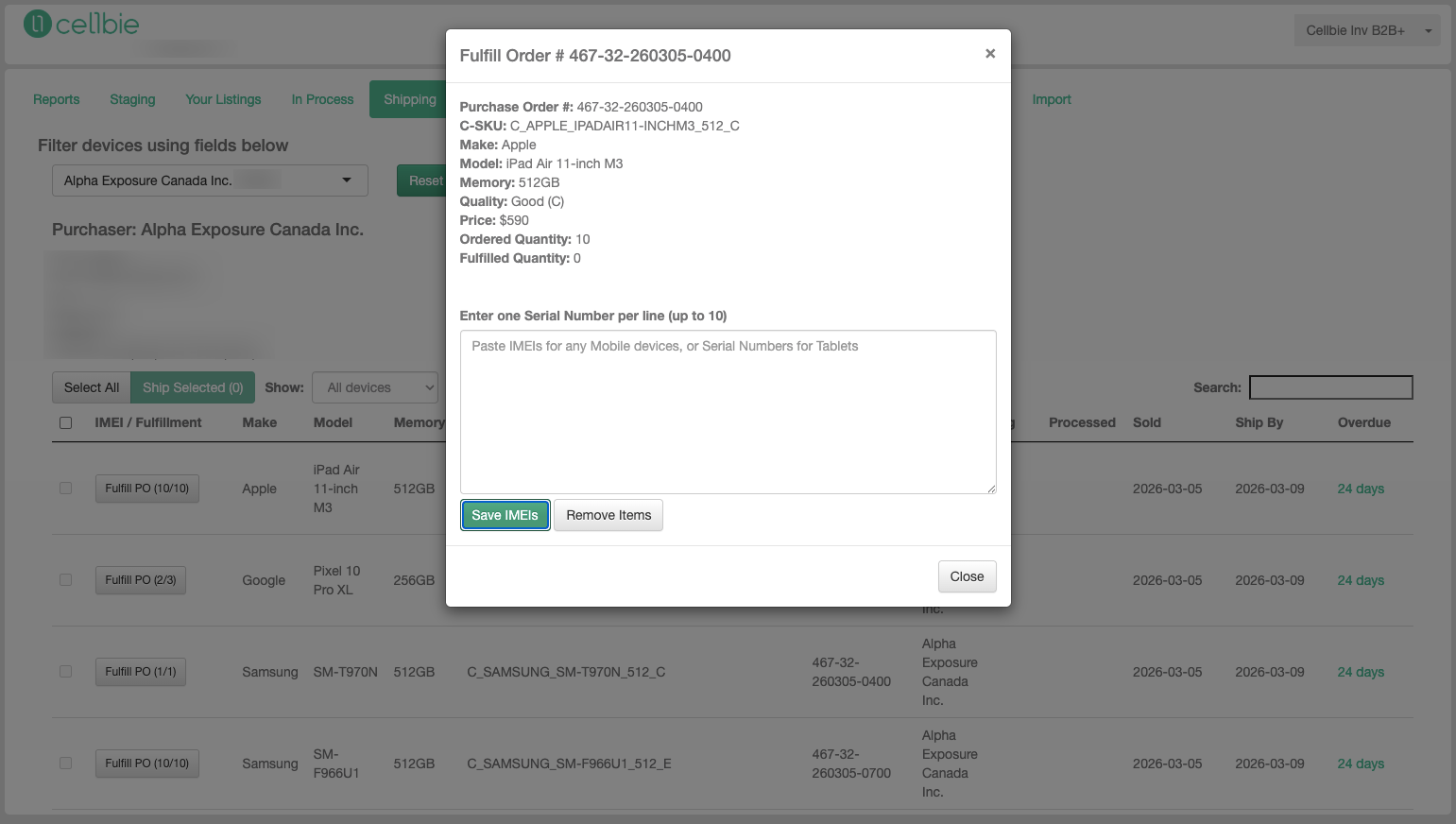
- Fulfill PO — Click “Fulfill PO” to enter the IMEI(s). Select fulfilled IMEIs, then add the transportation carrier and tracking number.
Bulk fulfillment
Use the Bulk Fulfillment feature to upload IMEI and shipping data via spreadsheet. The CSV must include: IMEI, purchase_order (if available), csku (if available), courier, tracking_number.
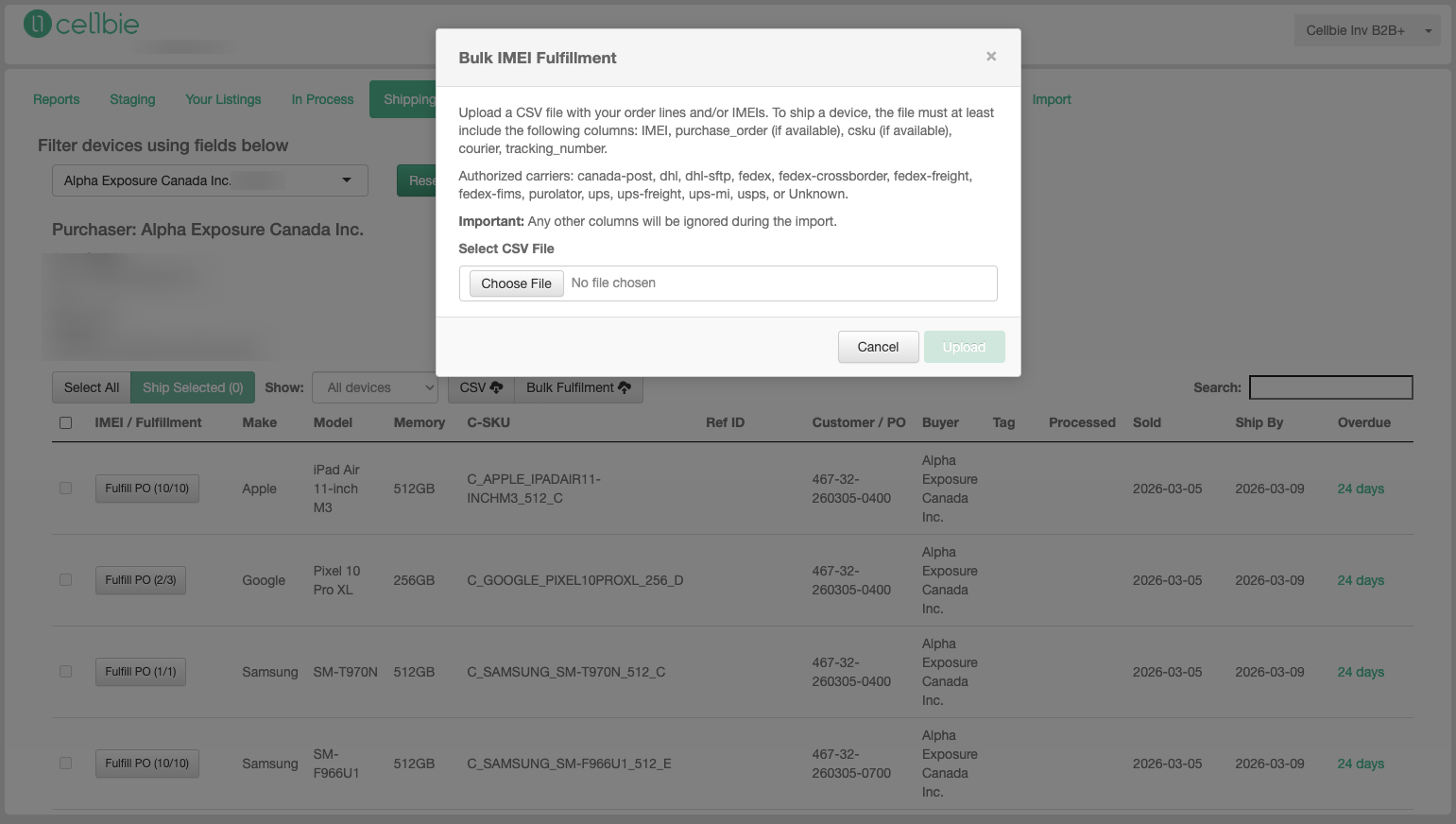
Supported carriers: Canada Post, DHL, FedEx, FedEx Crossborder, FedEx Freight, Purolator, UPS, UPS Freight, USPS, and others.
Fulfillment deadlines
Sellers have two business days to fulfill orders before they're marked Overdue. If you cannot fulfill an order, cancel it partially or entirely using Remove Items inside the Fulfill PO popup.
Still have questions? Contact support →
Related documentation