On this page
Process and sell mobile devices instantly
After testing your units, upload the diagnostics output to Cellbie. All devices will be certified and sold at your convenience. Ship to buyers, track your packages, and generate reports to scale your business.
Logging In
Access the Cellbie B2B web application via the Google Chrome browser using your assigned domain URL:
After logging in, you'll see nine tabs grouped by function:
- Core workflow: In Process, Shipping, Tracking
- Reporting: Reports, Known Quality, Feedback
- Tools: Quote, Device Price, Customers
Inventory Management
Known Quality
Process devices of known condition in bulk without connecting them to One. Use only when device condition is certain.
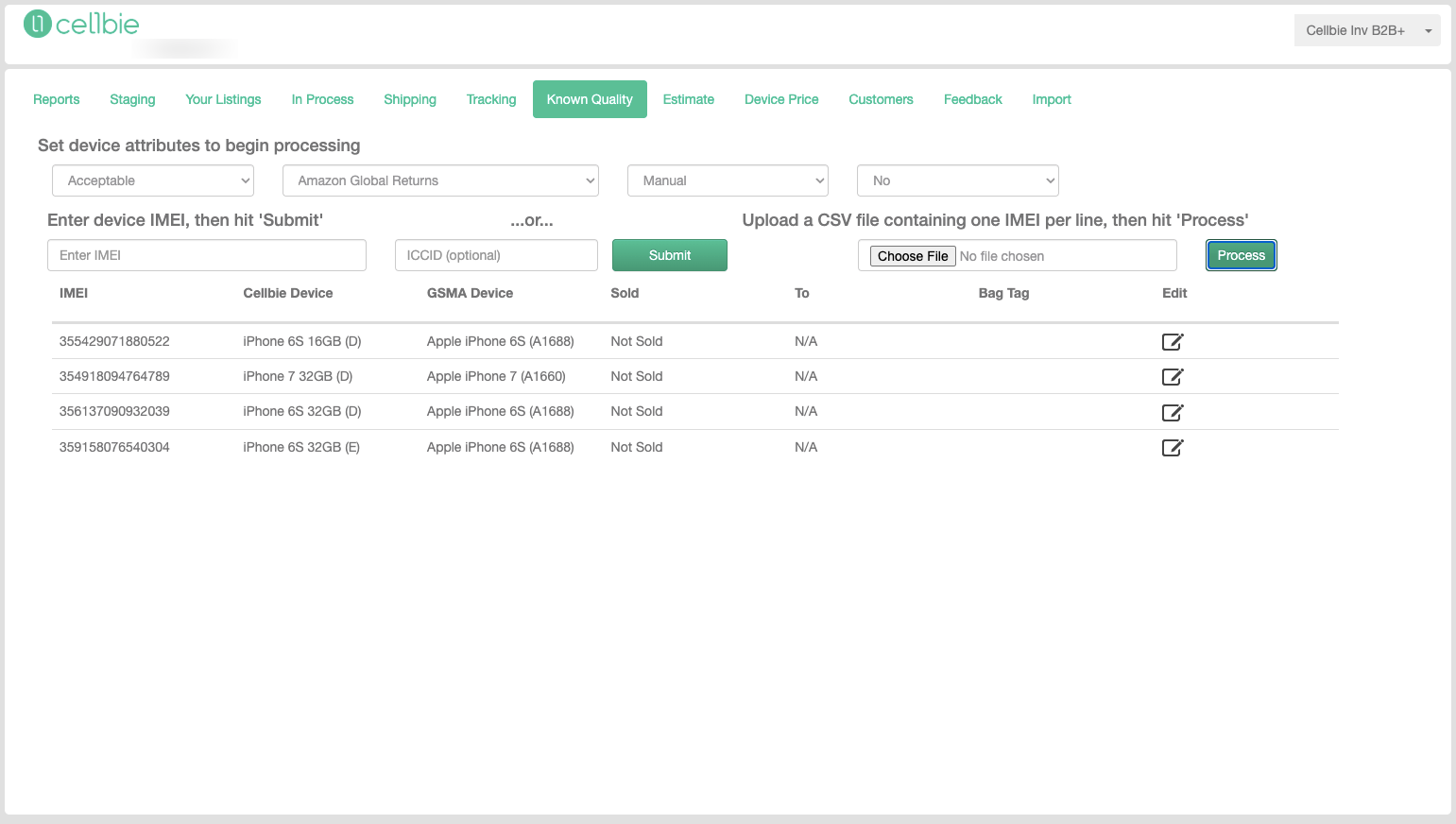
- Select quality grade
- Select carrier (if known) and customer
- Enter or scan the device IMEI
- Press Submit
The system identifies the device and adds it to the list. If identification fails, you'll be prompted to select manually.
In Process
The In Process tab manages all devices currently in the trade-in pipeline — every device connected to One that hasn't been shipped to a buyer yet.
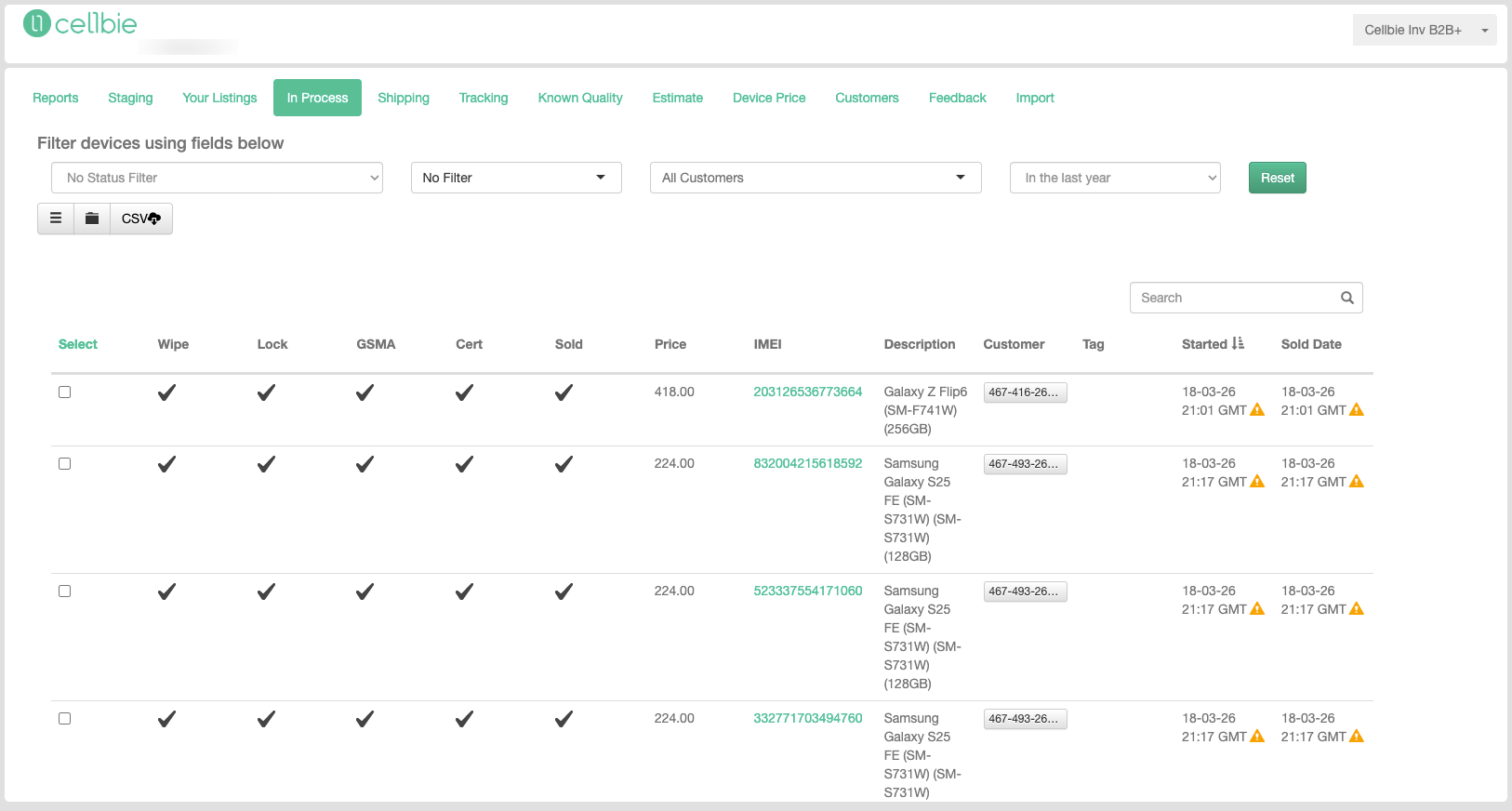
Each device row shows: Select, Wipe (✓ wiped / ✕ not), Lock (✓ unlocked / 🔒 locked), GSMA (✓ clean / ✕ flagged), Cert (✓ Cellbie Certified), Sold (✓ matched), Price, IMEI, Description, Customer, Tag, Started.
Bulk Actions
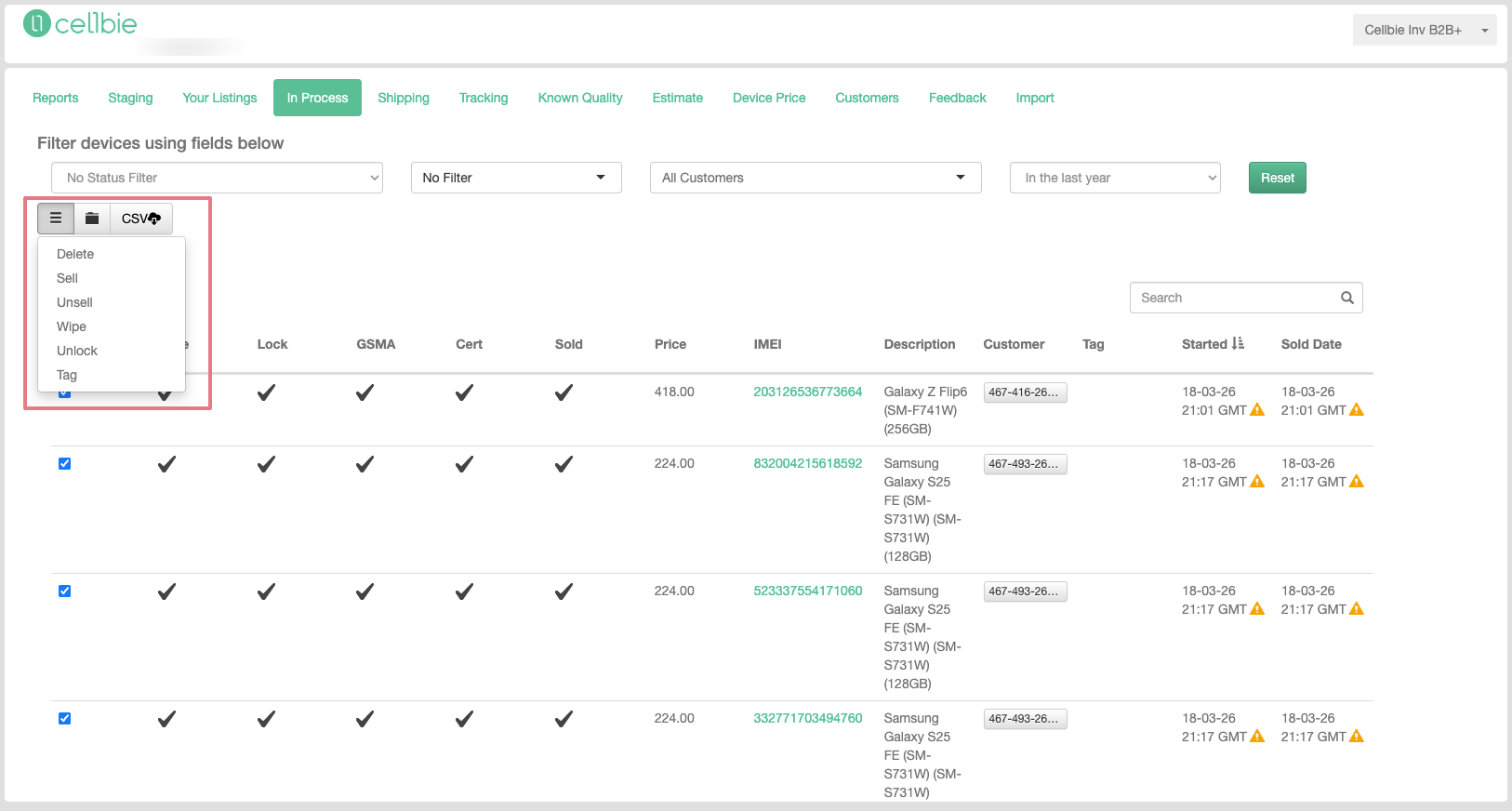
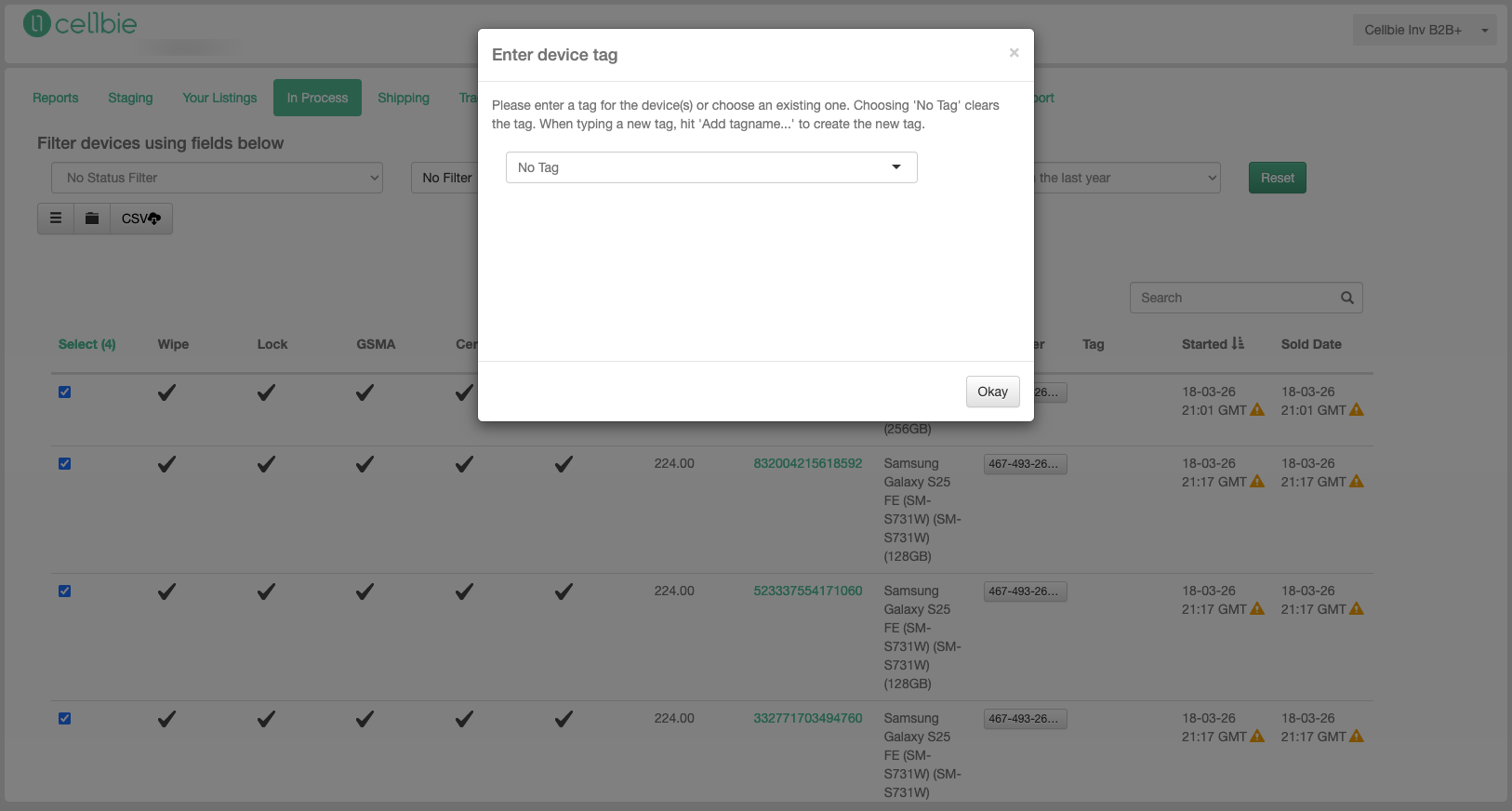
Select devices using checkboxes, then use the toolbar to apply bulk actions: Delete, Sell, Unsell, Wipe, Unlock, or Tag.
Tags
Tags organize devices by lot, batch, or internal reference (e.g., “PO 12345”, “Acme January”). Use tags to filter the In Process view, generate Tag Reports for pre-billing, and track devices by customer shipment batch.
Shipping
The Shipping tab is where you assign tracking numbers and ship devices to buyers.
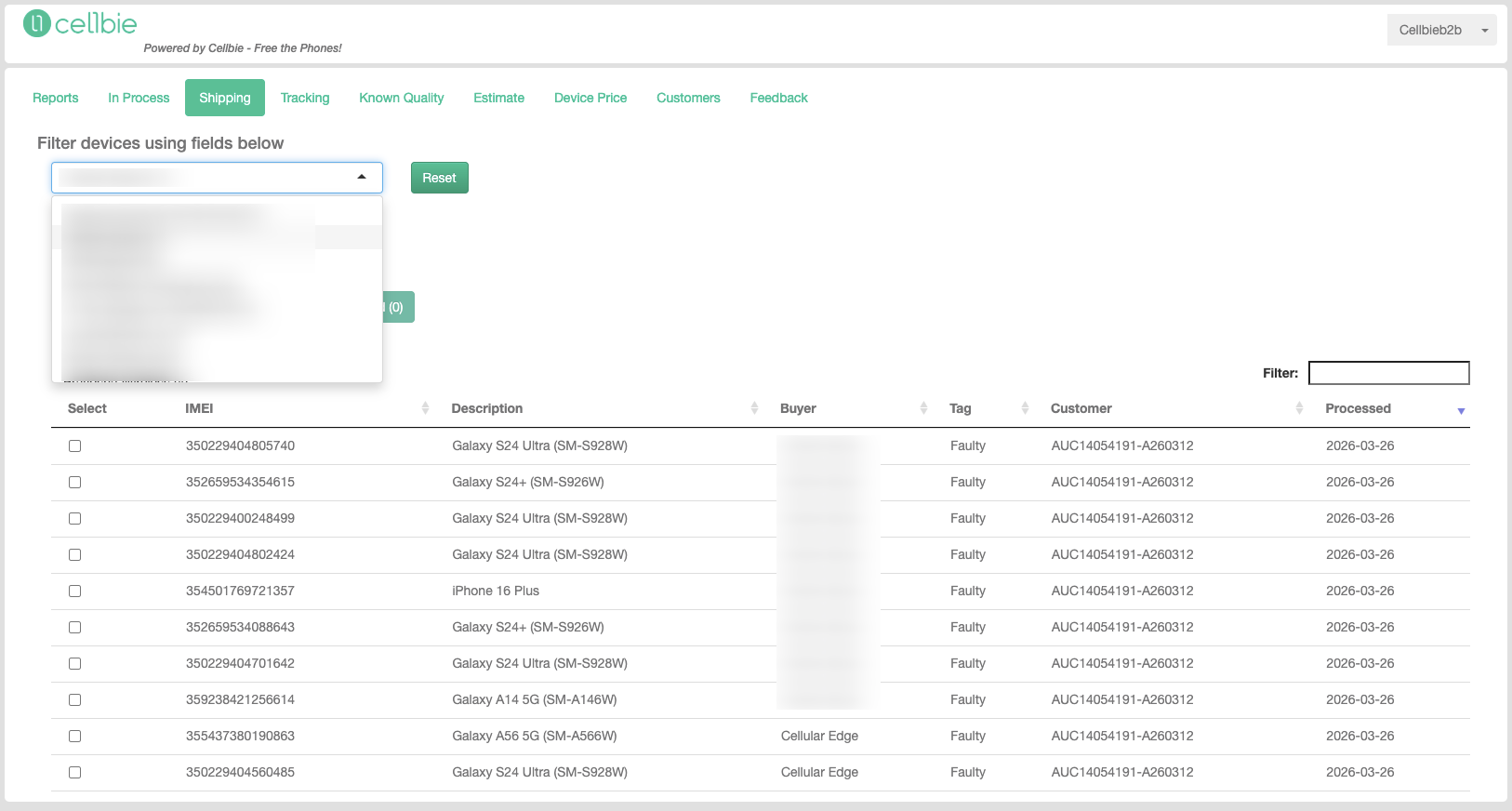
Creating shipments:
- Filter by IMEI (individual) or By Buyer (batch shipping)
- Select devices using checkboxes
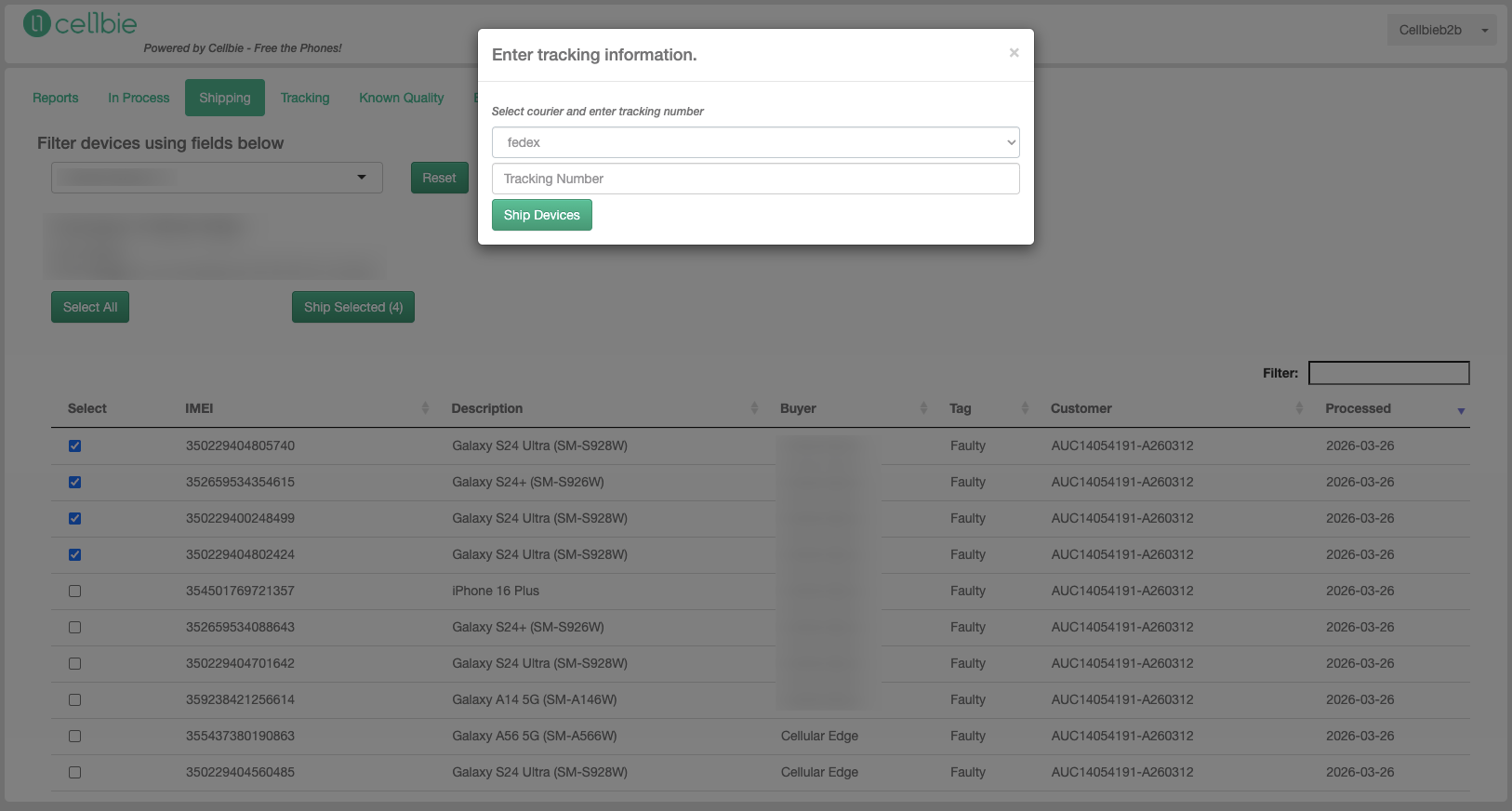
- Click “Ship Selected”
- Enter the shipment tracking number in the popup
- Print the device list and include it in the shipping container
Tracking
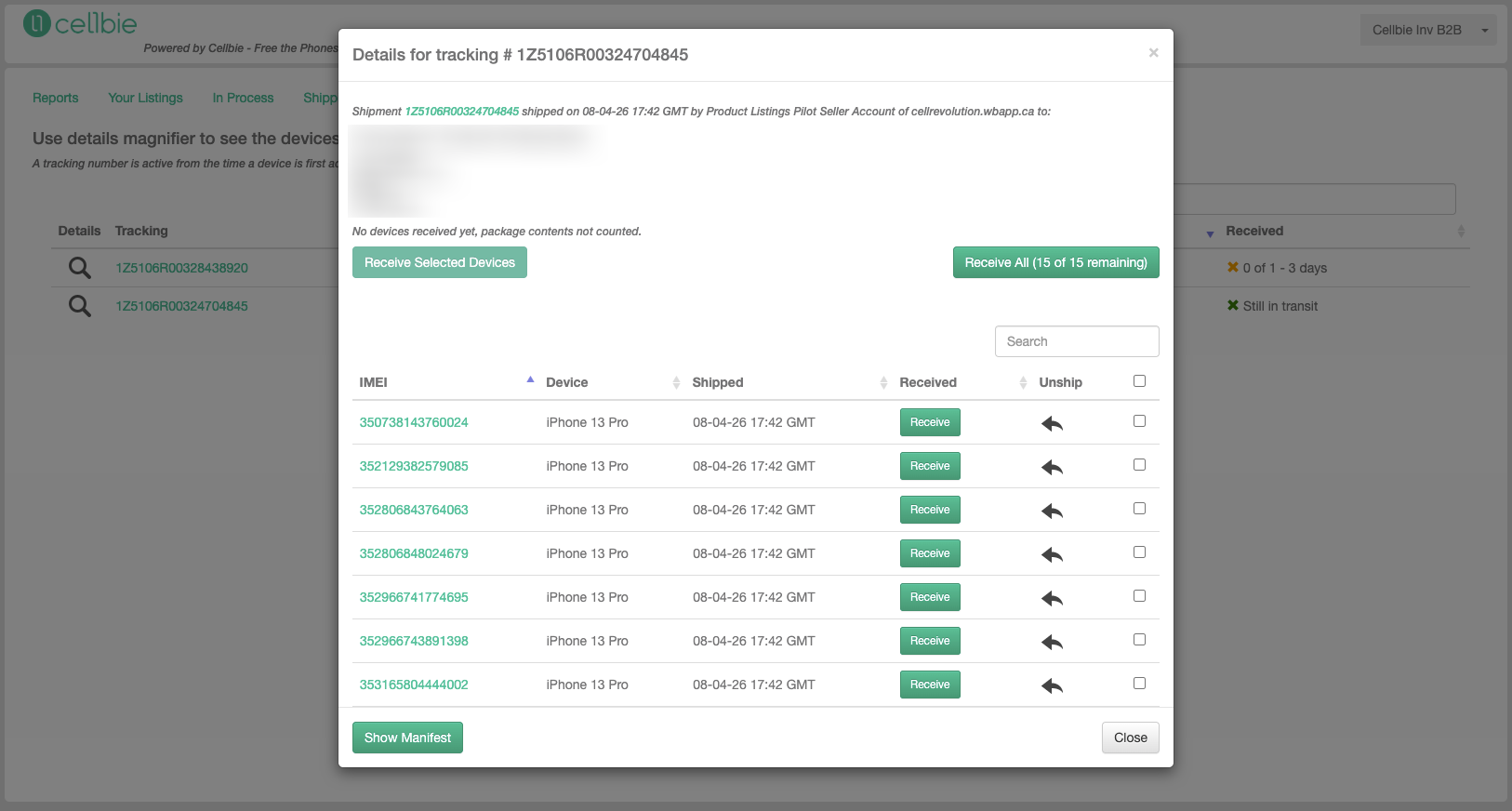
Monitor shipment status and buyer receiving progress.
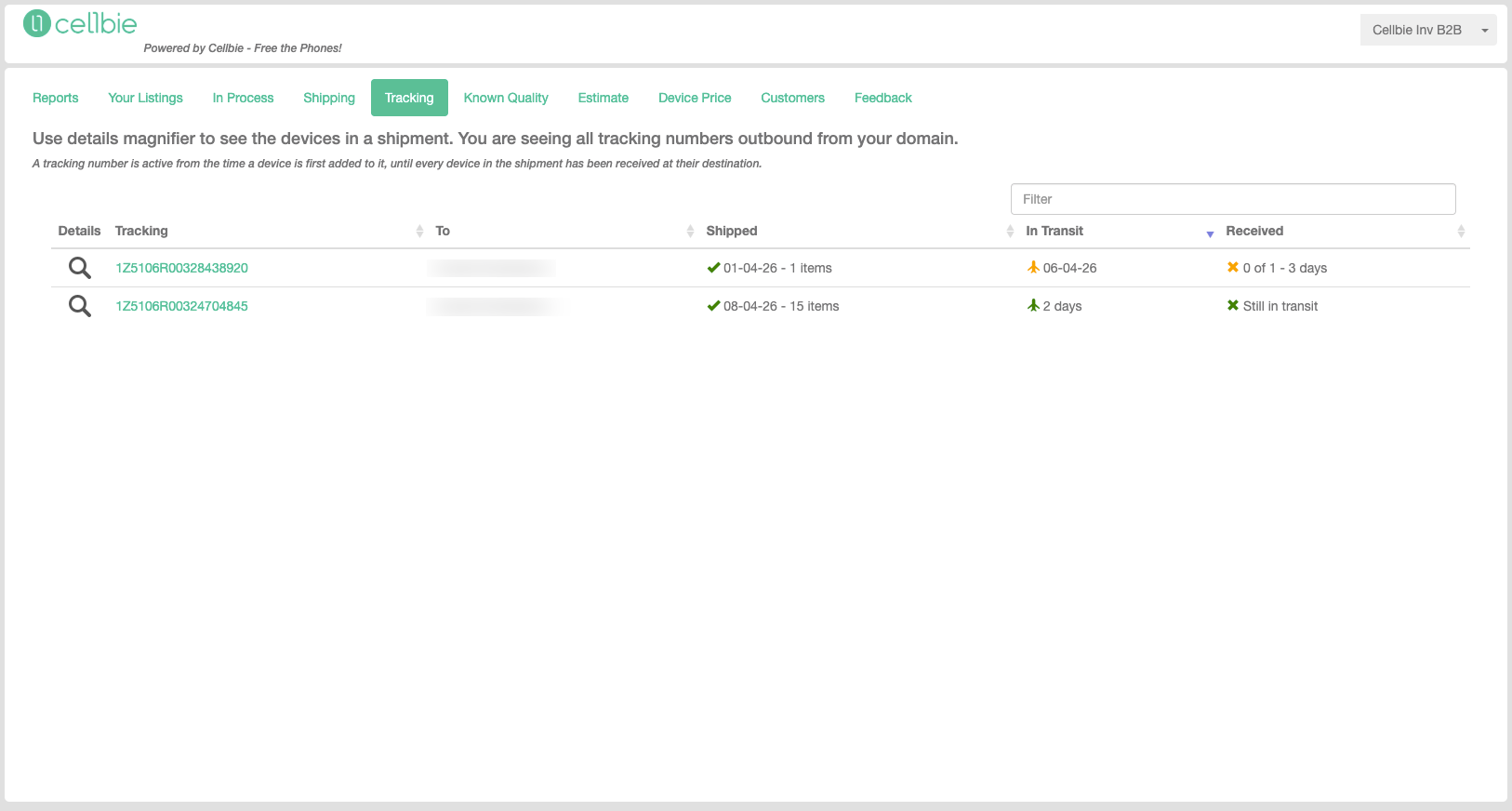
The tracking table shows: Tracking # (click to open carrier), To (buyer name), Shipped (date and count), In Transit (days, color-coded for late shipments), and Received (count vs. shipped).
Reporting & Feedback
Reports
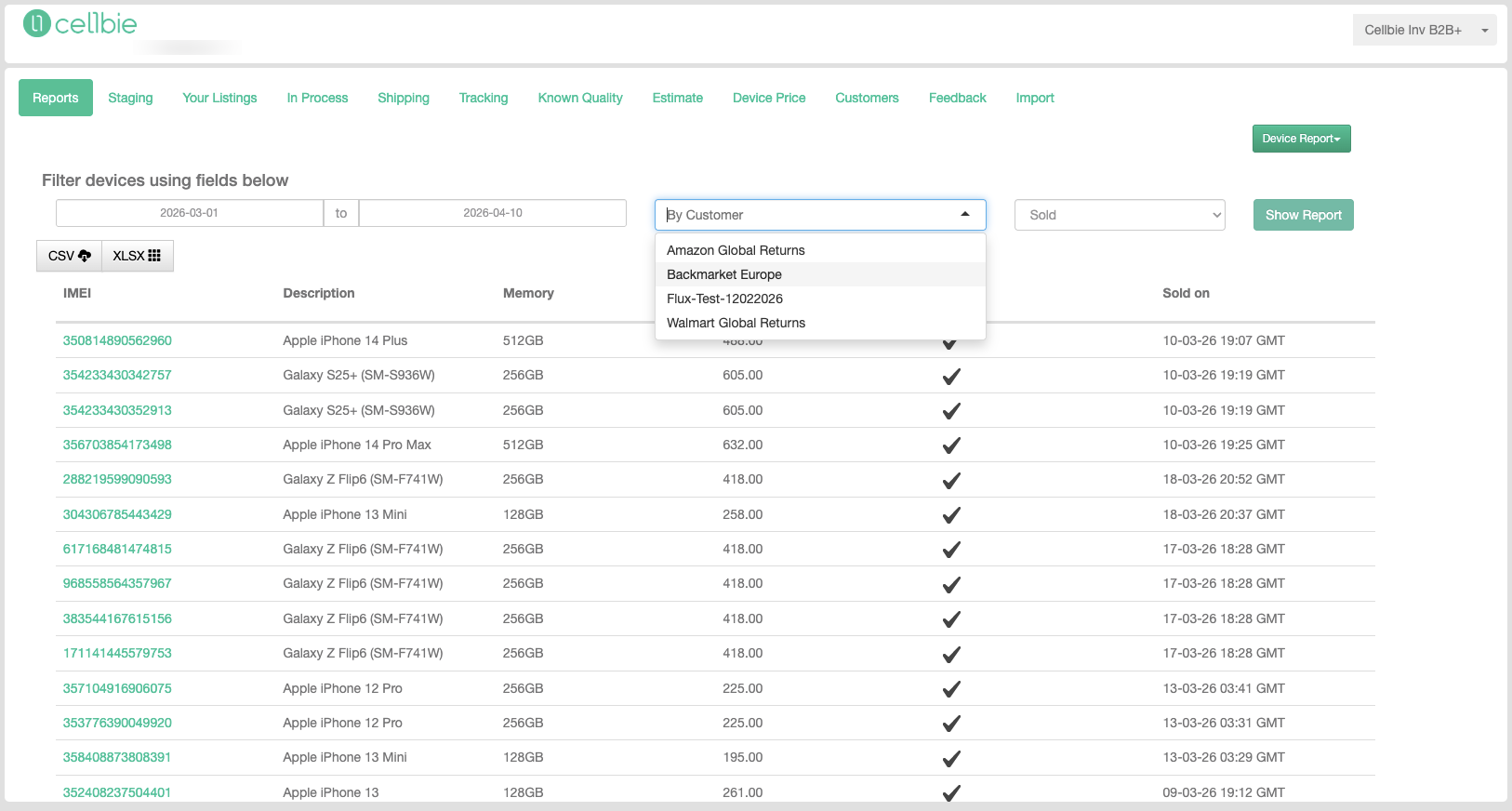
Generate activity reports filtered by timeframe, customer, and device state.
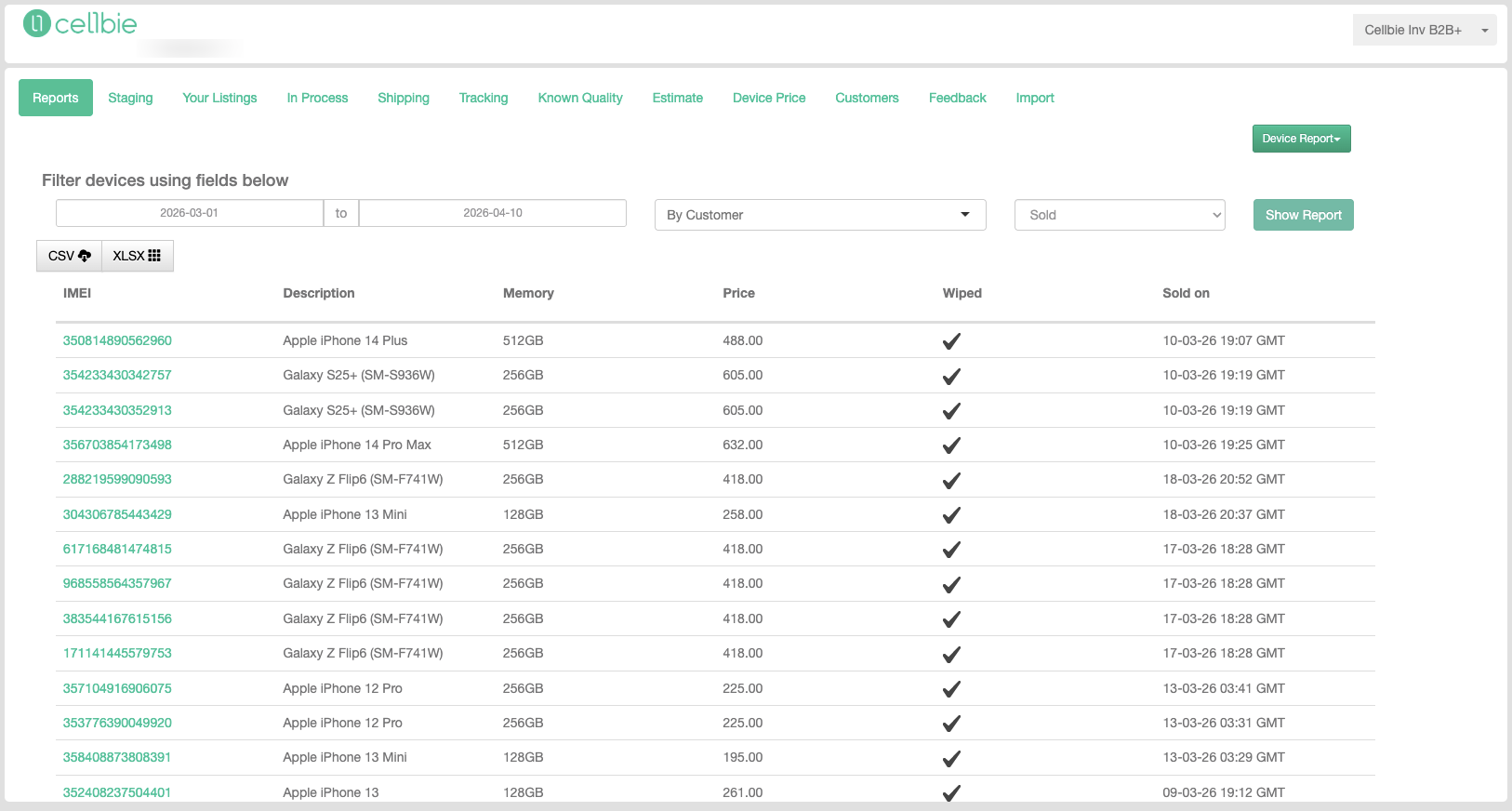
Reconciliation Report — Compare your records against Cellbie invoices. Invoices are generated on the 15th and last day of each month based on devices received by buyers. Upload a CSV of IMEIs, then match the Received date against invoice periods.
Tag Report — Generate reports grouped by tag. Useful for pre-billing summaries. Downloaded report Tab 1 matches the Payment Notice format (without taxes); Tab 2 has IMEI-level detail.
Pricing & Quoting
Quote
Generate price quotes for customers who provide device lists before delivering actual devices.
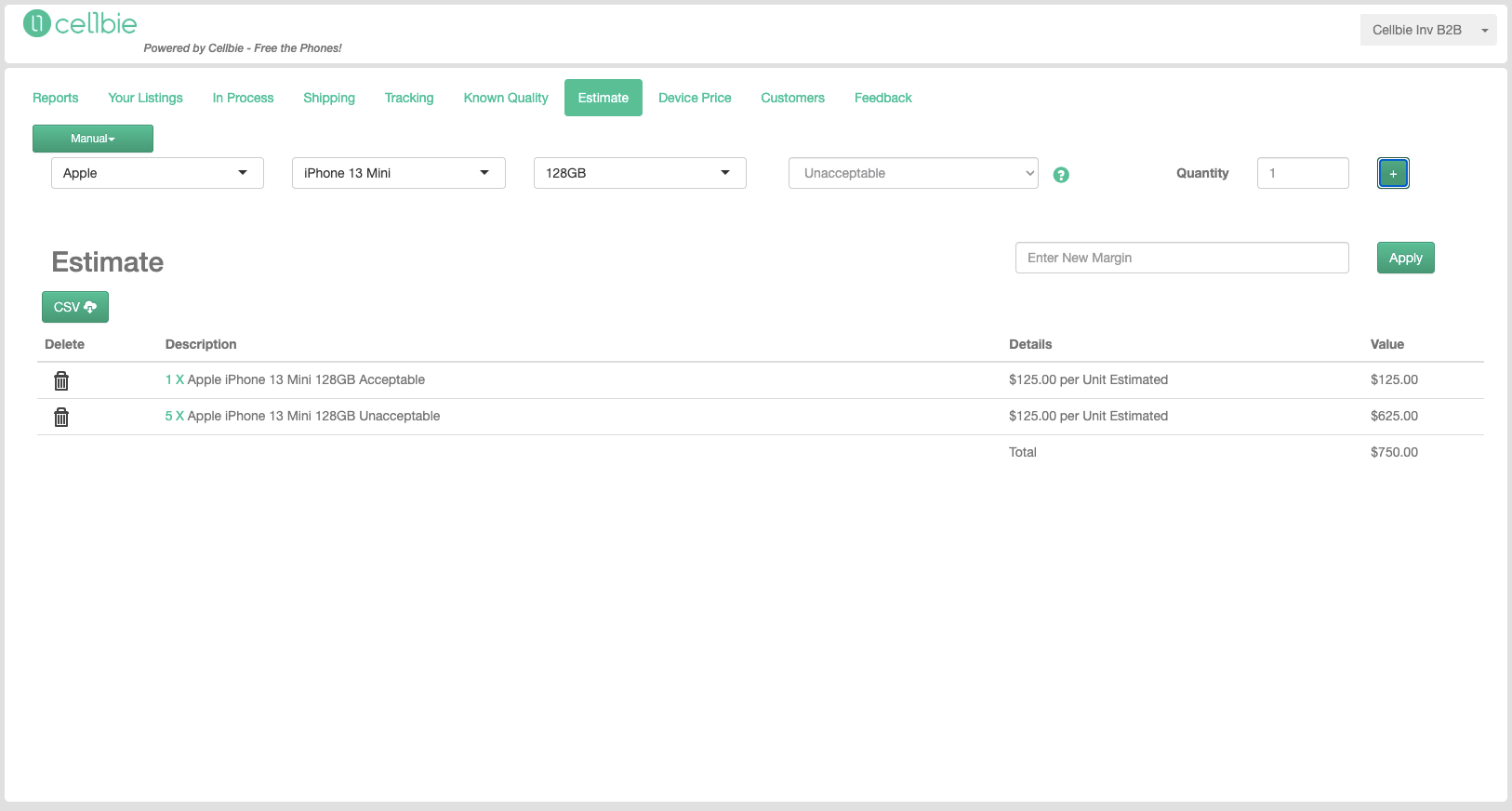
- Set your profit margin percentage → Apply
- Select Manufacturer, Model, Memory, Condition, Quantity
- Press “+” to add to the quote
- Repeat for each device type
- Download as CSV for the customer
Recommended: use “Good” condition as default when actual condition is unknown.
Device Price
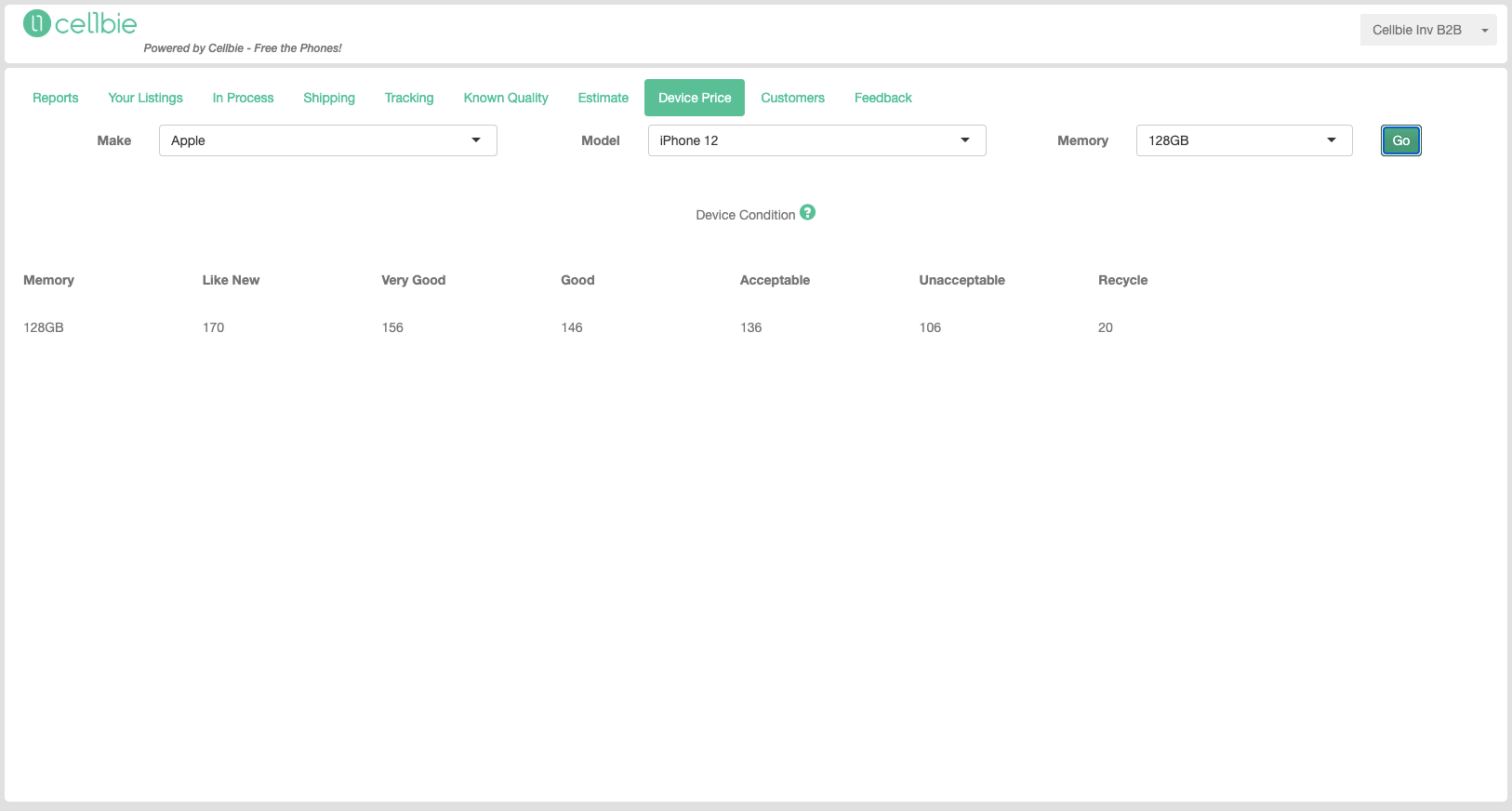
Look up the current top Cellbie price for any device. Select Manufacturer, Model, and Memory from the dropdowns and press “Go.”
Still have questions? Contact support →
Related documentation